Most companies start with a single AWS account. One account for everything - dev workloads sitting next to production databases, shared IAM roles with permissions nobody fully understands, and a CloudTrail log that’s a haystack of events from every team.
It works until it doesn’t. And by the time it stops working, the blast radius of any incident is your entire infrastructure.
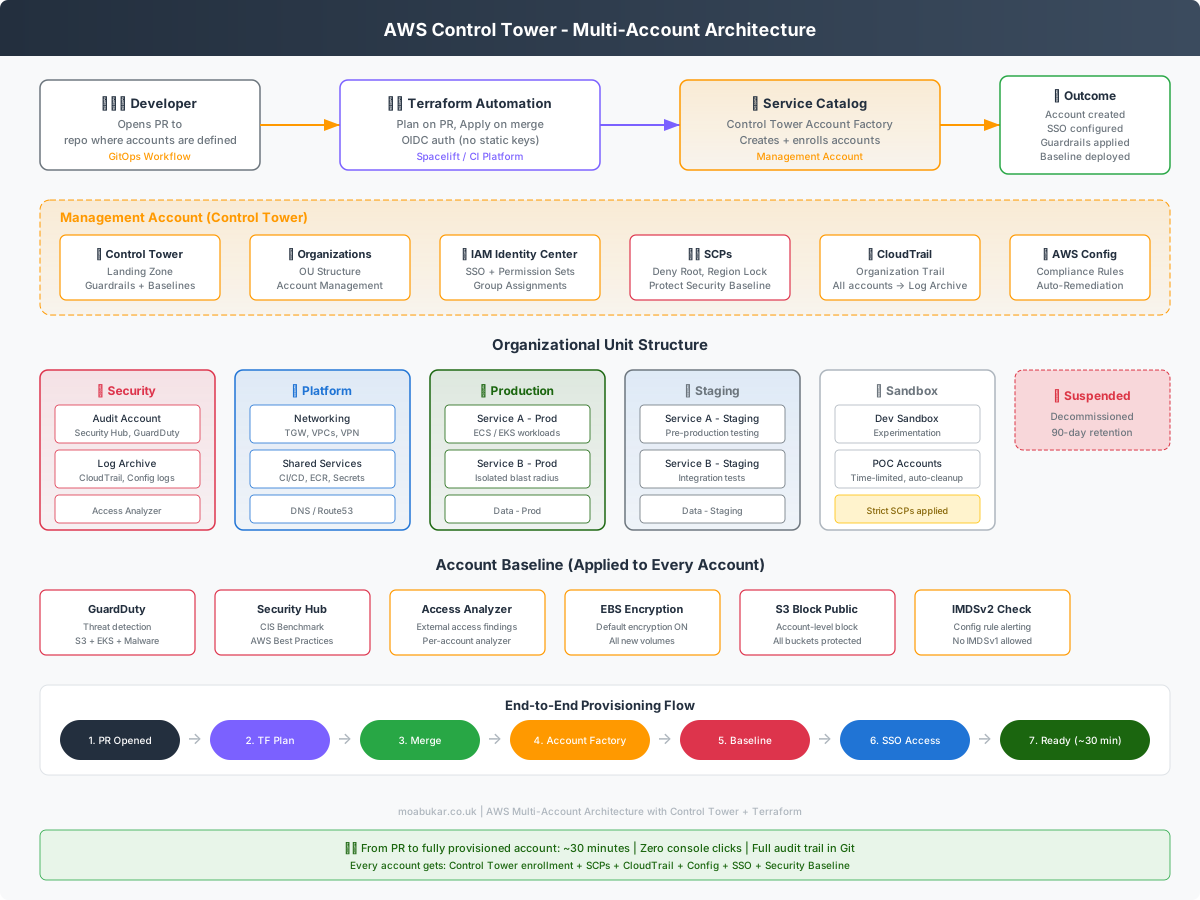
I recently helped a client migrate from this exact situation - a handful of loosely managed AWS accounts with no guardrails, no centralised logging, and no standardised way to create new accounts - to a fully automated multi-account architecture using AWS Control Tower, Service Catalog, and Terraform.
This post covers everything: the console setup, the problems we hit, the Terraform modules we built, and the lessons learned along the way. This isn’t a theoretical overview - it’s what we actually did, including the bits that didn’t go smoothly.
Why Multi-Account?
Before diving into the how, it’s worth understanding why AWS themselves recommend a multi-account strategy:
Blast radius isolation. If a developer accidentally deletes something in a sandbox account, production doesn’t blink. If credentials leak, the damage is contained to one account.
Clean billing. Each account maps to a cost centre, team, or environment. No more parsing thousands of line items to figure out which team spent what.
Security boundaries. IAM policies are account-scoped. Service Control Policies (SCPs) let you set hard guardrails per OU. You can’t accidentally give a sandbox account production database access.
Compliance. Auditors love seeing separate accounts with clear boundaries. It makes proving segregation of duties much easier.
The tradeoff is complexity. Managing 20+ accounts manually is painful. That’s where automation comes in.
Step 1: Enabling Control Tower (The Console Part)
Control Tower is one of those AWS services where you have to start in the console. There’s no terraform apply for the initial setup - you need to walk through the wizard.
Prerequisites
Before enabling Control Tower, make sure you have:
- An AWS Organizations management account (this becomes your Control Tower management account)
- A clean email address for the Audit account (e.g.,
aws-audit@yourcompany.com) - A clean email address for the Log Archive account (e.g.,
aws-logs@yourcompany.com) - Admin access in the management account
- At least 20 minutes of patience
The Setup Wizard
Navigate to AWS Control Tower in the console and click Set up landing zone.
The wizard walks you through several decisions:
1. Home Region
Pick the region where Control Tower will operate. This is where your landing zone resources live - CloudFormation stacks, Config rules, the lot. For a European client, we chose eu-central-1 (Frankfurt).
Warning: You cannot change the home region after setup. Choose carefully.
2. Region Deny Setting
Control Tower asks if you want to deny access to non-governed regions. We enabled this. There’s no good reason for workloads to spin up in ap-southeast-1 if your business operates in Europe.
We allowed four regions:
eu-central-1(Frankfurt) - primaryeu-west-2(London) - secondaryeu-west-1(Ireland) - available for specific servicesus-east-1(N. Virginia) - required for global services like IAM, CloudFront, Route53
3. Foundational OUs
Control Tower creates two OUs automatically:
- Security - houses the Audit and Log Archive accounts
- Sandbox - a default OU for experimentation
You can create additional OUs later. We added:
- Platform - shared infrastructure (networking, CI/CD, DNS)
- Prod - production workloads only
- Staging - pre-production environments
4. Shared Accounts
Control Tower creates two mandatory shared accounts:
Audit Account - centralised security. This is where Security Hub findings aggregate, GuardDuty alerts land, and Config rules are evaluated across the org. Think of it as your security team’s single pane of glass.
Log Archive Account - write-once storage. CloudTrail logs from every account in the organisation land here. AWS Config snapshots too. The account has restrictive policies - even admins can’t delete logs.
5. CloudTrail Configuration
Control Tower sets up an organisation-wide CloudTrail. Every API call in every account gets logged to the Log Archive account. We enabled:
- CloudTrail log file validation
- CloudTrail log file encryption (KMS)
- S3 access logging on the trail bucket
6. IAM Identity Center
If you haven’t set up IAM Identity Center (formerly AWS SSO), Control Tower will configure it. This is how users access accounts - no more IAM users with long-lived credentials.
The Wait
After clicking Set up landing zone, go make a coffee. The initial setup takes 30-60 minutes. Control Tower is:
- Creating the Audit and Log Archive accounts
- Enrolling them in the Security OU
- Deploying baseline CloudFormation StackSets
- Setting up Config rules and CloudTrail
- Configuring guardrails (SCPs)
The First Problem We Hit
When we enabled Control Tower, the client already had a few existing AWS accounts that weren’t part of any organisation structure. These accounts had resources running in them.
You cannot retroactively enrol existing accounts into Control Tower without meeting prerequisites. Each account needs:
- No existing AWS Config recorder (Control Tower creates its own)
- No conflicting CloudTrail trails
- Sufficient IAM permissions for the
AWSControlTowerExecutionrole
We had to go into each existing account, delete the existing Config recorder, and clean up conflicting CloudTrail configurations before enrolling them. This took a full day of careful work.
Lesson: Enable Control Tower as early as possible. The longer you wait, the more cleanup you’ll need.
Step 2: Designing the OU Structure
The OU structure is your organisational blueprint. Get it wrong and you’ll be fighting it forever. Get it right and everything clicks.
Here’s what we landed on:
Root
├── Management Account
│
├── Security (Control Tower managed)
│   ├── Audit Account
│   └── Log Archive Account
│
├── Platform
│   ├── Networking (Transit Gateway, VPCs)
│   ├── Shared Services (CI/CD, ECR, Secrets)
│   └── DNS (Route53 zones)
│
├── Prod
│   ├── Service A - Prod
│   ├── Service B - Prod
│   └── Data - Prod
│
├── Staging
│   ├── Service A - Staging
│   ├── Service B - Staging
│   └── Data - Staging
│
├── Sandbox
│   └── Developer sandboxes
│
└── Suspended
    └── Decommissioned accounts
Design Decisions
One account per service per environment. Not one account per team, not one account per environment. Per service, per environment. This gives maximum blast radius isolation. If the payment service has an incident, the order service is unaffected.
Platform OU for shared infrastructure. Networking (Transit Gateway, VPC peering), shared container registries, centralised secrets - these live in the Platform OU. Application teams consume these services but don’t manage the underlying infrastructure.
Suspended OU. When an account is decommissioned, it moves here rather than being deleted immediately. AWS keeps suspended accounts for 90 days. This gives you a recovery window.
Sandbox with strict SCPs. Sandbox accounts get the tightest guardrails - no leaving the org, no root user, region-locked. Developers can experiment freely within those boundaries.
Registering OUs with Control Tower
Here’s a gotcha that cost us time: OUs created via Terraform or the Organizations API are not automatically registered with Control Tower. You have to register them manually in the Control Tower console.
Go to Control Tower → Organization → click on the OU → Register OU.
Registration deploys baseline controls (Config rules, CloudTrail) to all accounts in that OU. Until an OU is registered, accounts in it don’t get Control Tower guardrails.
We created the OUs via Terraform (faster than clicking), then registered each one in the console. It’s a one-time operation per OU.
Step 3: The Account Module (Terraform)
With Control Tower running and OUs registered, we built Terraform modules to automate account creation. The core module uses AWS Service Catalog to trigger the Control Tower Account Factory.
How Account Factory Works
Under the hood, Control Tower provisions accounts via a Service Catalog product called “AWS Control Tower Account Factory.” When you provision this product with the right parameters, it:
- Creates the AWS account in Organizations
- Moves it to the specified OU
- Enrolls it in Control Tower
- Deploys baseline StackSets (CloudTrail, Config, IAM roles)
- Creates an SSO user with access to the account
- Applies all mandatory guardrails (SCPs) from the OU
All from a single Terraform resource.
The Account Module
# modules/account/main.tf

resource "aws_servicecatalog_provisioned_product" "account" {
  name                       = var.name
  product_name               = "AWS Control Tower Account Factory"
  provisioning_artifact_name = "AWS Control Tower Account Factory"

  provisioning_parameters {
    key   = "AccountName"
    value = var.name
  }

  provisioning_parameters {
    key   = "AccountEmail"
    value = var.email
  }

  provisioning_parameters {
    key   = "ManagedOrganizationalUnit"
    value = var.ou_name
  }

  provisioning_parameters {
    key   = "SSOUserEmail"
    value = coalesce(var.sso_email, var.email)
  }

  provisioning_parameters {
    key   = "SSOUserFirstName"
    value = var.sso_first_name
  }

  provisioning_parameters {
    key   = "SSOUserLastName"
    value = var.sso_last_name
  }

  tags = {
    Name      = var.name
    ManagedBy = "terraform"
    Team      = var.team
  }

  timeouts {
    create = "60m"
    update = "60m"
    delete = "60m"
  }

  lifecycle {
    ignore_changes = [
      provisioning_artifact_name,
    ]
  }
}
Getting the Account ID
One thing that isn’t obvious - Service Catalog doesn’t directly return the account ID in the resource attributes. You need to read the provisioned product outputs:
data "aws_servicecatalog_provisioned_product_outputs" "account" {
  provisioned_product_name = aws_servicecatalog_provisioned_product.account.name
}

locals {
  account_id = try(
    [for o in data.aws_servicecatalog_provisioned_product_outputs.account.outputs :
      o.value if o.key == "AccountId"
    ][0],
    null
  )
}

output "account_id" {
  value = local.account_id
}

output "admin_role_arn" {
  value = local.account_id != null ? (
    "arn:aws:iam::${local.account_id}:role/AWSControlTowerExecution"
  ) : null
}
The AWSControlTowerExecution role is created automatically by Control Tower in every enrolled account. It’s the role your CI/CD platform uses for cross-account access during provisioning.
Variables
# modules/account/variables.tf

variable "name" {
  type        = string
  description = "Account name (max 50 characters, must be unique)"

  validation {
    condition     = length(var.name) <= 50
    error_message = "Account name must be 50 characters or less."
  }
}

variable "email" {
  type        = string
  description = "Root account email (must be globally unique across all AWS)"
}

variable "ou_name" {
  type        = string
  description = "Target OU name as shown in Control Tower (e.g., 'Sandbox', 'Prod')"
}

variable "sso_email" {
  type        = string
  description = "SSO user email (defaults to account email)"
  default     = null
}

variable "sso_first_name" {
  type    = string
  default = "Admin"
}

variable "sso_last_name" {
  type    = string
  default = "User"
}

variable "team" {
  type    = string
  default = "platform"
}
The OU Name Gotcha
Notice we use var.ou_name (a name like “Sandbox”) rather than an OU ID. This is because Control Tower Account Factory expects the OU name in a specific format, not the raw OU ID.
In earlier versions of Account Factory, the format was "Custom (ou-xxxx-yyyyyyyy)". In newer versions, it just takes the OU name. We initially used the wrong format and got cryptic Service Catalog provisioning failures.
Lesson: Check your Control Tower version. The ManagedOrganizationalUnit parameter format has changed over time.
Step 4: Using the Account Module
With the module built, creating an account becomes a simple Terraform definition in the appropriate OU folder.
Single Account
# ou/platform/networking/main.tf

module "networking" {
  source = "../../../modules/account"

  name           = "networking"
  email          = "aws-accounts+networking@company.com"
  ou_name        = "Platform"
  sso_first_name = "Platform"
  sso_last_name  = "Networking"
  team           = "platform"
}

output "networking_account_id" {
  value = module.networking.account_id
}
Multiple Environments
For services that need dev, staging, and prod:
# ou/workloads/order-service/main.tf

locals {
  service_name = "order-service"
  environments = {
    staging = "Staging"
    prod    = "Prod"
  }
}

module "accounts" {
  source   = "../../../modules/account"
  for_each = local.environments

  name           = "${local.service_name}-${each.key}"
  email          = "aws-accounts+${local.service_name}-${each.key}@company.com"
  ou_name        = each.value
  sso_first_name = local.service_name
  sso_last_name  = each.key
  team           = "product"
}

output "account_ids" {
  value = { for k, v in module.accounts : k => v.account_id }
}
The Email Problem
AWS requires globally unique email addresses for every account. You can’t reuse emails, even across different organisations.
The solution: + addressing. Most email providers (Google Workspace, Microsoft 365) support it:
aws-accounts+networking@company.comaws-accounts+order-service-prod@company.comaws-accounts+order-service-staging@company.com
All route to the same aws-accounts@company.com mailbox, but AWS sees them as unique. We created a shared mailbox specifically for this purpose.
Step 5: Security Baseline Module
Control Tower gives you a solid foundation, but we wanted additional security controls deployed to every account automatically. We built a baseline module that gets applied after account creation.
# modules/account-baseline/main.tf

# GuardDuty - threat detection
resource "aws_guardduty_detector" "this" {
  count  = var.enable_guardduty ? 1 : 0
  enable = true

  datasources {
    s3_logs {
      enable = true
    }
    kubernetes {
      audit_logs {
        enable = var.enable_eks_protection
      }
    }
    malware_protection {
      scan_ec2_instance_with_findings {
        ebs_volumes {
          enable = true
        }
      }
    }
  }
}

# Security Hub with CIS and AWS best practices
resource "aws_securityhub_account" "this" {
  count                     = var.enable_security_hub ? 1 : 0
  enable_default_standards  = false
  control_finding_generator = "SECURITY_CONTROL"
  auto_enable_controls      = true
}

resource "aws_securityhub_standards_subscription" "cis" {
  count         = var.enable_security_hub ? 1 : 0
  depends_on    = [aws_securityhub_account.this]
  standards_arn = "arn:aws:securityhub:${var.region}::standards/cis-aws-foundations-benchmark/v/1.4.0"
}

resource "aws_securityhub_standards_subscription" "foundational" {
  count         = var.enable_security_hub ? 1 : 0
  depends_on    = [aws_securityhub_account.this]
  standards_arn = "arn:aws:securityhub:${var.region}::standards/aws-foundational-security-best-practices/v/1.0.0"
}

# IAM Access Analyzer - detect external access
resource "aws_accessanalyzer_analyzer" "this" {
  count         = var.enable_access_analyzer ? 1 : 0
  analyzer_name = "${var.account_name}-access-analyzer"
  type          = "ACCOUNT"
}

# EBS encryption by default
resource "aws_ebs_encryption_by_default" "this" {
  count   = var.enable_ebs_encryption ? 1 : 0
  enabled = true
}

# S3 account-level public access block
resource "aws_s3_account_public_access_block" "this" {
  count                   = var.block_public_s3 ? 1 : 0
  block_public_acls       = true
  block_public_policy     = true
  ignore_public_acls      = true
  restrict_public_buckets = true
}

# IMDSv2 enforcement alerting via Config rule
resource "aws_config_config_rule" "imdsv2" {
  count = var.enable_config ? 1 : 0
  name  = "ec2-imdsv2-check"

  source {
    owner             = "AWS"
    source_identifier = "EC2_IMDSV2_CHECK"
  }
}
This gives every account:
- GuardDuty with S3, EKS, and malware scanning enabled
- Security Hub with CIS and AWS Foundational benchmarks
- IAM Access Analyzer to catch external trust policies
- EBS encryption by default - no unencrypted volumes
- S3 public access block at the account level
- IMDSv2 enforcement alerting (no more instance metadata v1)
Step 6: Service Control Policies
SCPs are your hard guardrails. They operate at the Organizations level and override any IAM permissions. Even an admin in a child account can’t do something an SCP denies.
We started conservative - only attaching SCPs to the Sandbox OU - and planned to expand after testing.
Deny Root User
{
  "Version": "2012-10-17",
  "Statement": [
    {
      "Sid": "DenyRootUser",
      "Effect": "Deny",
      "Action": "*",
      "Resource": "*",
      "Condition": {
        "StringLike": {
          "aws:PrincipalArn": "arn:aws:iam::*:root"
        }
      }
    }
  ]
}
Every account has a root user. Nobody should be using it. This SCP ensures they can’t.
Deny Leaving the Organisation
{
  "Version": "2012-10-17",
  "Statement": [
    {
      "Sid": "DenyLeaveOrganization",
      "Effect": "Deny",
      "Action": ["organizations:LeaveOrganization"],
      "Resource": "*"
    }
  ]
}
Simple but critical. Without this, anyone with admin access in a child account could remove it from your organisation.
Restrict Regions
{
  "Version": "2012-10-17",
  "Statement": [
    {
      "Sid": "DenyUnapprovedRegions",
      "Effect": "Deny",
      "NotAction": [
        "iam:*",
        "sts:*",
        "s3:*",
        "cloudfront:*",
        "route53:*",
        "support:*",
        "budgets:*",
        "organizations:*",
        "account:*"
      ],
      "Resource": "*",
      "Condition": {
        "StringNotEquals": {
          "aws:RequestedRegion": [
            "eu-central-1",
            "eu-west-2",
            "eu-west-1",
            "us-east-1"
          ]
        }
      }
    }
  ]
}
Note the NotAction list - global services like IAM, STS, CloudFront, and Route53 must be excluded because they only operate in us-east-1 regardless of where you call them from.
Protect Security Baseline
This one prevents anyone from disabling the security tools we deployed:
{
  "Version": "2012-10-17",
  "Statement": [
    {
      "Sid": "DenyDisableGuardDuty",
      "Effect": "Deny",
      "Action": [
        "guardduty:DeleteDetector",
        "guardduty:DeleteMembers",
        "guardduty:DisassociateFromMasterAccount"
      ],
      "Resource": "*"
    },
    {
      "Sid": "DenyDisableSecurityHub",
      "Effect": "Deny",
      "Action": [
        "securityhub:DisableSecurityHub",
        "securityhub:DeleteMembers"
      ],
      "Resource": "*"
    },
    {
      "Sid": "DenyDisableConfig",
      "Effect": "Deny",
      "Action": [
        "config:DeleteConfigurationRecorder",
        "config:DeleteDeliveryChannel",
        "config:StopConfigurationRecorder"
      ],
      "Resource": "*"
    },
    {
      "Sid": "DenyDisableAccessAnalyzer",
      "Effect": "Deny",
      "Action": ["access-analyzer:DeleteAnalyzer"],
      "Resource": "*"
    }
  ]
}
SCP Terraform Module
We built a reusable module for SCPs:
# modules/scp/main.tf

resource "aws_organizations_policy" "this" {
  name        = var.name
  description = var.description
  type        = "SERVICE_CONTROL_POLICY"
  content     = var.policy_file != "" ? file(var.policy_file) : var.policy_json
}

resource "aws_organizations_policy_attachment" "targets" {
  for_each  = toset(var.target_ids)
  policy_id = aws_organizations_policy.this.id
  target_id = each.value
}
Usage:
module "scp_deny_root" {
  source = "../modules/scp"

  name        = "DenyRootUser"
  description = "Deny all actions by root user"
  policy_file = "${path.module}/../scps/deny-root-user.json"

  target_ids = [
    local.ou_ids.sandbox,
    local.ou_ids.prod,
    local.ou_ids.staging,
  ]
}
The 5-SCP Limit
AWS limits each OU to 5 attached SCPs. Control Tower already attaches some of its own guardrail SCPs. We hit this limit on the Sandbox OU and had to consolidate some of our policies.
Lesson: Check how many SCPs Control Tower has attached to an OU before adding your own. Use aws organizations list-policies-for-target to check.
Step 7: IAM Identity Center (SSO)
We managed SSO permission sets and account assignments via Terraform. This ensures consistent access patterns across all accounts.
# modules/iam-identity-center/main.tf

data "aws_ssoadmin_instances" "this" {}

locals {
  instance_arn     = tolist(data.aws_ssoadmin_instances.this.arns)[0]
  identity_store_id = tolist(data.aws_ssoadmin_instances.this.identity_store_ids)[0]
}

resource "aws_ssoadmin_permission_set" "this" {
  name             = var.name
  description      = var.description
  instance_arn     = local.instance_arn
  session_duration = var.session_duration
}

resource "aws_ssoadmin_managed_policy_attachment" "this" {
  for_each           = toset(var.aws_managed_policies)
  instance_arn       = local.instance_arn
  permission_set_arn = aws_ssoadmin_permission_set.this.arn
  managed_policy_arn = each.value
}

# Look up groups by display name
data "aws_identitystore_group" "groups" {
  for_each          = toset(var.group_names)
  identity_store_id = local.identity_store_id

  alternate_identifier {
    unique_attribute {
      attribute_path  = "DisplayName"
      attribute_value = each.value
    }
  }
}

# Assign groups to accounts
resource "aws_ssoadmin_account_assignment" "this" {
  for_each = { for a in local.assignments : a.key => a }

  instance_arn       = local.instance_arn
  permission_set_arn = aws_ssoadmin_permission_set.this.arn
  principal_type     = each.value.principal_type
  principal_id       = each.value.principal_id
  target_type        = "AWS_ACCOUNT"
  target_id          = each.value.account_id
}
This let us define permission sets like AdministratorAccess, ReadOnlyAccess, and DeveloperAccess, then assign them to IAM Identity Center groups per account. New accounts automatically got the right access patterns based on their OU.
Step 8: CI/CD Integration (Spacelift)
The final piece was wiring everything into a CI/CD platform. We used Spacelift, but the pattern works with any Terraform automation tool - Terraform Cloud, Atlantis, GitHub Actions with OIDC.
The key design decision: administrative stacks create child stacks. The root stack manages OU-level configuration. Each OU has its own stack that manages accounts within it.
# modules/spacelift-stack/main.tf

resource "spacelift_stack" "this" {
  name         = var.name
  description  = var.description
  repository   = var.repository
  branch       = "main"
  project_root = var.project_root

  administrative    = var.administrative
  autodeploy        = var.autodeploy
  terraform_version = var.terraform_version
}

resource "spacelift_aws_integration_attachment" "this" {
  stack_id       = spacelift_stack.this.id
  integration_id = var.aws_integration_id
  read           = true
  write          = true
}
AWS authentication uses OIDC - no static access keys anywhere. Spacelift assumes a role in the management account, which then uses AWSControlTowerExecution for cross-account operations.
The Provisioning Flow
- Developer opens a PR adding an account definition
- Spacelift runs
terraform planand posts the result on the PR - Team reviews and approves
- PR is merged to
main - Spacelift runs
terraform apply - Service Catalog triggers Account Factory
- Account is created, enrolled in Control Tower, baselines deployed
- SSO access is configured automatically
- Developer gets an email invitation to access the new account
Total time from merge to usable account: approximately 30 minutes. No console clicks, no tickets, full audit trail in Git.
Problems We Hit (And How We Solved Them)
1. Account Factory Timeout on First Run
The first time we ran terraform apply with the account module, it timed out. Account Factory can take 25-30 minutes, and our initial timeout was 30 minutes.
Fix: Set timeouts to 60 minutes. Account creation usually completes in 25 minutes, but StackSet deployments can add time.
2. Existing Accounts Conflicting with Control Tower
The client had existing accounts with their own Config recorders and CloudTrail trails. Control Tower expects to manage these itself.
Fix: We wrote a cleanup script that:
- Deleted existing Config recorders
- Deleted existing CloudTrail trails
- Removed conflicting IAM roles
- Then enrolled each account via the Control Tower console
3. SCP Limit Per OU
Control Tower attaches its own SCPs. We attached ours on top and hit the 5-SCP limit.
Fix: Consolidated multiple deny statements into single SCP documents. Instead of separate policies for “deny root” and “deny leave org,” we combined them into one “baseline-deny” policy.
4. OU Name Format Changes
The ManagedOrganizationalUnit parameter in Account Factory changed format between Control Tower versions. Older versions expected "Custom (ou-xxxx-yyyyyyyy)", newer versions just want the OU display name like "Sandbox".
Fix: Check your Control Tower version. If in doubt, test with a sandbox account first.
5. Service Catalog Permissions
The IAM role running Terraform needs specific Service Catalog permissions that aren’t obvious. You need not just servicecatalog:ProvisionProduct but also permissions to describe products, list artifacts, and manage provisioned products.
Fix: We created a dedicated IAM role for account provisioning with a policy that covers all Service Catalog and Organizations operations needed.
6. StackSet Eventual Consistency
After an account is created, StackSet deployments to that account aren’t instant. The StackSet targets the OU, and AWS detects the new account eventually. We saw delays of 5-10 minutes.
Fix: Added explicit waits in Terraform using depends_on chains. The baseline module depends on the account module completing, adding a natural delay.
7. Protecting Account Emails
Once an account exists, changing its root email is dangerous - it effectively changes who has root access. We needed to prevent accidental email changes.
Fix: Used OPA/Rego policy in our CI platform to detect and block any Terraform plan that modifies the AccountEmail parameter of an existing provisioned product.
Account Deletion Process
Deleting accounts requires a deliberate sequence:
-
Remove from Terraform - delete the module block and apply. This removes the Service Catalog product but doesn’t delete the AWS account.
-
Move to Suspended OU -
aws organizations move-account --account-id XXXX --destination-parent-id ou-suspended -
Close the account -
aws organizations close-account --account-id XXXX -
Wait 90 days - AWS retains suspended accounts for 90 days before permanent deletion
-
Clean up SSO - remove any permission set assignments for the closed account
We built a runbook for this process rather than automating it. Account deletion should be intentional and reviewed.
What We Ended Up With
After two weeks of work, the client went from:
- 4 loosely managed accounts with no guardrails
- Manual account creation via the console
- No centralised logging or security tooling
- Shared IAM users with long-lived credentials
To:
- A fully automated multi-account architecture
- Account creation via PR (30 minutes, zero console clicks)
- Centralised CloudTrail, Config, GuardDuty, and Security Hub
- SSO with permission sets (no more IAM users)
- SCPs enforcing guardrails across all OUs
- OPA policies preventing dangerous Terraform changes
- Full audit trail in Git for every account ever created
The infrastructure code lives in a single repository with a clear structure:
account-provisioning/
├── modules/
│   ├── account/              # Service Catalog + Account Factory
│   ├── account-baseline/     # Security baseline (GuardDuty, etc.)
│   ├── scp/                  # Service Control Policies
│   ├── iam-identity-center/  # SSO permission sets
│   └── spacelift-stack/      # CI/CD stack configuration
├── ou/
│   ├── locals.tf             # Org config (OU IDs, regions)
│   ├── providers.tf          # AWS + CI providers
│   ├── scps.tf               # SCP definitions
│   ├── platform/             # Platform OU accounts
│   ├── prod/                 # Production OU accounts
│   ├── staging/              # Staging OU accounts
│   ├── sandbox/              # Sandbox OU accounts
│   └── security/             # Security OU accounts
├── scps/                     # SCP JSON policy files
├── bootstrap/                # Bootstrap IAM roles
└── docs/                     # Architecture diagrams
Key Takeaways
Start with Control Tower early. Retrofitting it onto existing accounts is painful. If you’re building a new AWS setup, enable Control Tower on day one.
Automate account creation from the start. Even if you only have 3 accounts today, build the automation. When you need your 10th account, it’ll be a 5-line Terraform change instead of an afternoon of clicking.
SCPs are your most powerful security tool. IAM policies can be overridden by admins. SCPs cannot. Use them for the things that must never happen - root login, disabling security services, operating in unapproved regions.
Use SSO, not IAM users. Every account created by Account Factory gets SSO access automatically. There’s no reason for long-lived IAM credentials in 2026.
Test with Sandbox first. Every SCP, every baseline, every module change - test it in the Sandbox OU before applying to production. SCPs that are too restrictive can lock you out of your own accounts.
Document the deletion process. Account creation is automated and repeatable. Account deletion is rare and high-risk. Write a runbook, not a Terraform module.
Building a multi-account AWS setup or migrating to Control Tower? Feel free to reach out on LinkedIn.