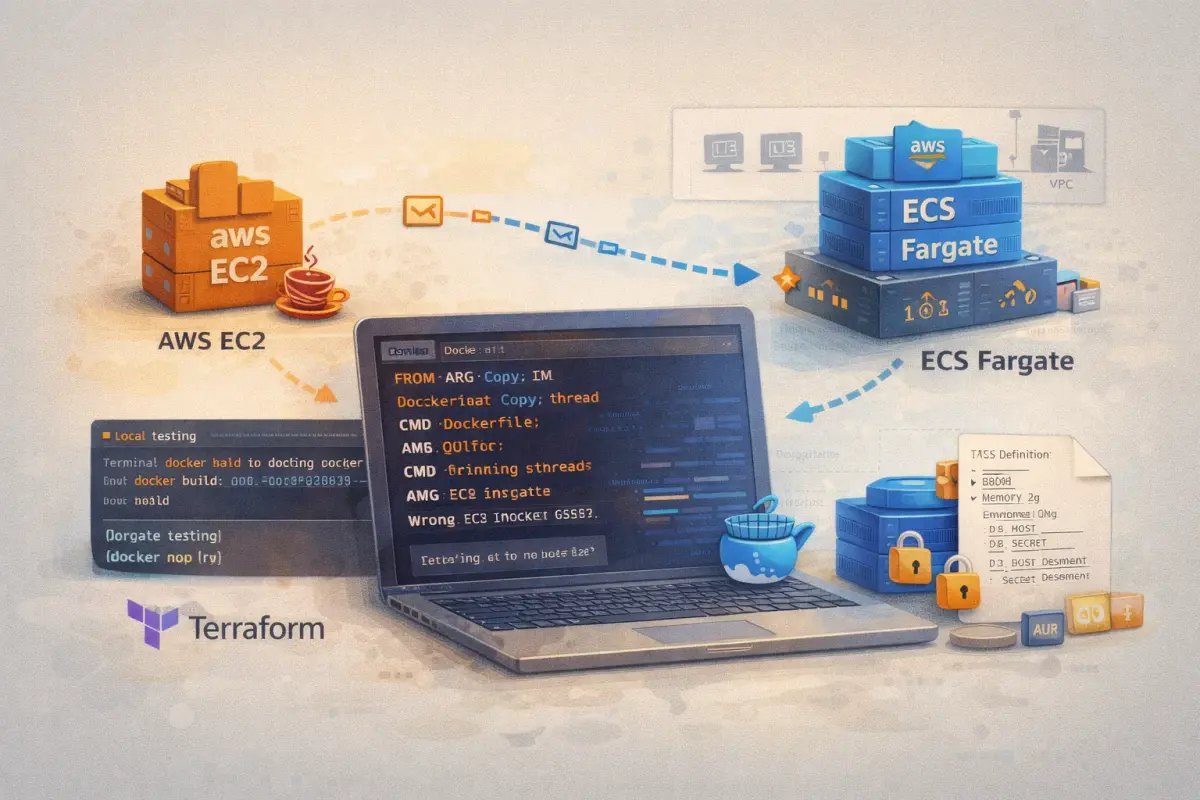
Migrating a Java Application from EC2 to ECS Fargate: A Step-by-Step Guide
Running Java applications on EC2 works, but you’re managing instances, patching OS, handling auto-scaling groups, and dealing with capacity planning. ECS Fargate removes all of that – you just define your container and AWS handles the rest.
I’ve migrated dozens of Java applications from EC2 to Fargate. This post walks through the complete process: validating the application locally, building an optimised Docker image, creating the ECS task definition, handling secrets and configuration, setting up networking, and achieving production parity.
By the end, you’ll have a repeatable process for containerising any Java application.

Prerequisites
Before starting:
- Java application packaged as a JAR (or WAR)
- Docker installed locally
- AWS CLI configured
- Basic familiarity with ECS concepts
- Terraform (optional, but recommended for infrastructure)
Code Repository: All code from this post is available at github.com/moabukar/blog-code/ec2-to-fargate-java-migration
Step 1: Understand the Existing EC2 Setup
Before containerising, document everything about the current deployment:
# SSH into the EC2 instance
ssh -i key.pem ec2-user@your-ec2-instance

# Find the Java process
ps aux | grep java
Output:
ec2-user  1234  5.2 12.3 4567890 123456 ?  Sl   10:00   1:23
  /usr/bin/java -Xms512m -Xmx2g -Dspring.profiles.active=prod
  -Dserver.port=8080 -jar /opt/app/myapp.jar
Document:
| Item | Value |
|---|---|
| Java version | java -version → OpenJDK 17 |
| JVM flags | -Xms512m -Xmx2g |
| Spring profile | prod |
| Port | 8080 |
| JAR location | /opt/app/myapp.jar |
| Config files | /opt/app/config/application.yml |
| Environment variables | Check /etc/environment or systemd service |
| Log location | /var/log/app/ |
| Health check endpoint | GET /actuator/health |
Also check:
# Environment variables
env | grep -E "(DB_|API_|SECRET_)"

# Config files
cat /opt/app/config/application.yml

# System resources
free -h
nproc

# Network dependencies
netstat -tlnp | grep java
cat /etc/hosts
Step 2: Run the JAR Locally
Before containerising, verify the application runs locally with the same configuration:
# Create a working directory
mkdir -p ~/migration-test && cd ~/migration-test

# Copy the JAR from EC2
scp -i key.pem ec2-user@your-ec2-instance:/opt/app/myapp.jar .

# Copy config files
scp -i key.pem ec2-user@your-ec2-instance:/opt/app/config/application.yml .

# Set environment variables (match EC2)
export DB_HOST=localhost
export DB_PASSWORD=testpassword
export SPRING_PROFILES_ACTIVE=local

# Run with the same JVM flags
java -Xms512m -Xmx2g \
  -Dspring.profiles.active=local \
  -Dserver.port=8080 \
  -jar myapp.jar
Test the health endpoint:
curl http://localhost:8080/actuator/health
# {"status":"UP"}
If it doesn’t work locally, fix it before proceeding. Common issues:
- Missing environment variables
- Database connectivity (use a local DB or mock)
- External service dependencies
Step 3: Create the Dockerfile
Basic Dockerfile
Start simple:
# Dockerfile
FROM eclipse-temurin:17-jre-alpine

WORKDIR /app

COPY myapp.jar app.jar

EXPOSE 8080

ENTRYPOINT ["java", "-jar", "app.jar"]
Production-Ready Dockerfile
A real production Dockerfile needs more:
# Dockerfile
FROM eclipse-temurin:17-jre-alpine AS runtime

# Security: run as non-root user
RUN addgroup -g 1001 appgroup && \
    adduser -u 1001 -G appgroup -D appuser

WORKDIR /app

# Copy the JAR
COPY --chown=appuser:appgroup myapp.jar app.jar

# Create directories for logs and temp files
RUN mkdir -p /app/logs /app/tmp && \
    chown -R appuser:appgroup /app

# Switch to non-root user
USER appuser

# Expose the application port
EXPOSE 8080

# Health check (ECS also does health checks, but this is useful for Docker)
HEALTHCHECK --interval=30s --timeout=10s --start-period=60s --retries=3 \
  CMD wget --no-verbose --tries=1 --spider http://localhost:8080/actuator/health || exit 1

# JVM configuration via environment variables
ENV JAVA_OPTS="-XX:+UseContainerSupport \
  -XX:MaxRAMPercentage=75.0 \
  -XX:InitialRAMPercentage=50.0 \
  -Djava.security.egd=file:/dev/./urandom \
  -Duser.timezone=UTC"

# Application configuration
ENV SERVER_PORT=8080
ENV SPRING_PROFILES_ACTIVE=prod

ENTRYPOINT ["sh", "-c", "java $JAVA_OPTS -jar app.jar"]
Key Dockerfile Decisions Explained
Base image: eclipse-temurin:17-jre-alpine
- Eclipse Temurin is the successor to AdoptOpenJDK
- JRE-only (not JDK) – smaller image, no compiler needed at runtime
- Alpine Linux – smallest footprint (~170MB vs ~400MB for Debian)
-XX:+UseContainerSupport
- Enables JVM to respect container memory limits
- Without this, JVM might try to use more memory than the container has
-XX:MaxRAMPercentage=75.0
- Use 75% of container memory for heap
- Leaves 25% for metaspace, thread stacks, native memory, and OS
Non-root user
- Security best practice – container shouldn’t run as root
- Fargate runs containers as root by default unless you specify otherwise
file:/dev/./urandom
- Faster startup – avoids blocking on
/dev/randomfor entropy
Step 4: Build and Test the Docker Image
# Build the image
docker build -t myapp:latest .

# Run locally with environment variables
docker run -d \
  --name myapp-test \
  -p 8080:8080 \
  -e DB_HOST=host.docker.internal \
  -e DB_PASSWORD=testpassword \
  -e SPRING_PROFILES_ACTIVE=local \
  myapp:latest

# Check logs
docker logs -f myapp-test

# Test health endpoint
curl http://localhost:8080/actuator/health

# Check resource usage
docker stats myapp-test
Test with Memory Limits (Simulating Fargate)
Fargate tasks have specific memory allocations. Test with limits:
# Simulate a 1GB Fargate task
docker run -d \
  --name myapp-constrained \
  --memory=1g \
  --cpus=0.5 \
  -p 8080:8080 \
  -e SPRING_PROFILES_ACTIVE=local \
  myapp:latest

# Watch memory usage
docker stats myapp-constrained
If the container gets OOM-killed, adjust your MaxRAMPercentage or increase the memory allocation.
Step 5: Push to Amazon ECR
# Create ECR repository
aws ecr create-repository \
  --repository-name myapp \
  --image-scanning-configuration scanOnPush=true

# Get the repository URI
ECR_URI=$(aws ecr describe-repositories \
  --repository-names myapp \
  --query 'repositories[0].repositoryUri' \
  --output text)

# Authenticate Docker to ECR
aws ecr get-login-password --region eu-west-1 | \
  docker login --username AWS --password-stdin $ECR_URI

# Tag and push
docker tag myapp:latest $ECR_URI:latest
docker tag myapp:latest $ECR_URI:$(git rev-parse --short HEAD)
docker push $ECR_URI:latest
docker push $ECR_URI:$(git rev-parse --short HEAD)
Step 6: Create the ECS Task Definition
Using AWS CLI
# Create task definition JSON
cat > task-definition.json << 'EOF'
{
  "family": "myapp",
  "networkMode": "awsvpc",
  "requiresCompatibilities": ["FARGATE"],
  "cpu": "512",
  "memory": "1024",
  "executionRoleArn": "arn:aws:iam::123456789012:role/ecsTaskExecutionRole",
  "taskRoleArn": "arn:aws:iam::123456789012:role/myapp-task-role",
  "containerDefinitions": [
    {
      "name": "myapp",
      "image": "123456789012.dkr.ecr.eu-west-1.amazonaws.com/myapp:latest",
      "essential": true,
      "portMappings": [
        {
          "containerPort": 8080,
          "protocol": "tcp"
        }
      ],
      "environment": [
        {
          "name": "SPRING_PROFILES_ACTIVE",
          "value": "prod"
        },
        {
          "name": "SERVER_PORT",
          "value": "8080"
        }
      ],
      "secrets": [
        {
          "name": "DB_PASSWORD",
          "valueFrom": "arn:aws:secretsmanager:eu-west-1:123456789012:secret:myapp/db-password"
        },
        {
          "name": "API_KEY",
          "valueFrom": "arn:aws:ssm:eu-west-1:123456789012:parameter/myapp/api-key"
        }
      ],
      "logConfiguration": {
        "logDriver": "awslogs",
        "options": {
          "awslogs-group": "/ecs/myapp",
          "awslogs-region": "eu-west-1",
          "awslogs-stream-prefix": "ecs"
        }
      },
      "healthCheck": {
        "command": ["CMD-SHELL", "wget --no-verbose --tries=1 --spider http://localhost:8080/actuator/health || exit 1"],
        "interval": 30,
        "timeout": 10,
        "retries": 3,
        "startPeriod": 60
      }
    }
  ]
}
EOF

# Register the task definition
aws ecs register-task-definition --cli-input-json file://task-definition.json
Using Terraform (Recommended)
# ecr.tf
resource "aws_ecr_repository" "myapp" {
  name                 = "myapp"
  image_tag_mutability = "MUTABLE"

  image_scanning_configuration {
    scan_on_push = true
  }

  encryption_configuration {
    encryption_type = "AES256"
  }
}

resource "aws_ecr_lifecycle_policy" "myapp" {
  repository = aws_ecr_repository.myapp.name

  policy = jsonencode({
    rules = [
      {
        rulePriority = 1
        description  = "Keep last 10 images"
        selection = {
          tagStatus   = "any"
          countType   = "imageCountMoreThan"
          countNumber = 10
        }
        action = {
          type = "expire"
        }
      }
    ]
  })
}
# iam.tf
# Task execution role (for ECS to pull images and write logs)
resource "aws_iam_role" "ecs_task_execution" {
name = "myapp-ecs-task-execution"
assume_role_policy = jsonencode({
Version = "2012-10-17"
Statement = [
{
Action = "sts:AssumeRole"
Effect = "Allow"
Principal = {
Service = "ecs-tasks.amazonaws.com"
}
}
]
})
}
resource "aws_iam_role_policy_attachment" "ecs_task_execution" {
role = aws_iam_role.ecs_task_execution.name
policy_arn = "arn:aws:iam::aws:policy/service-role/AmazonECSTaskExecutionRolePolicy"
}
# Allow reading secrets
resource "aws_iam_role_policy" "ecs_task_execution_secrets" {
name = "secrets-access"
role = aws_iam_role.ecs_task_execution.id
policy = jsonencode({
Version = "2012-10-17"
Statement = [
{
Effect = "Allow"
Action = [
"secretsmanager:GetSecretValue"
]
Resource = [
"arn:aws:secretsmanager:eu-west-1:*:secret:myapp/*"
]
},
{
Effect = "Allow"
Action = [
"ssm:GetParameters"
]
Resource = [
"arn:aws:ssm:eu-west-1:*:parameter/myapp/*"
]
}
]
})
}
# Task role (for the application to access AWS services)
resource "aws_iam_role" "ecs_task" {
name = "myapp-ecs-task"
assume_role_policy = jsonencode({
Version = "2012-10-17"
Statement = [
{
Action = "sts:AssumeRole"
Effect = "Allow"
Principal = {
Service = "ecs-tasks.amazonaws.com"
}
}
]
})
}
# Add policies for S3, SQS, etc. as needed
resource "aws_iam_role_policy" "ecs_task_s3" {
name = "s3-access"
role = aws_iam_role.ecs_task.id
policy = jsonencode({
Version = "2012-10-17"
Statement = [
{
Effect = "Allow"
Action = [
"s3:GetObject",
"s3:PutObject"
]
Resource = [
"arn:aws:s3:::myapp-data/*"
]
}
]
})
}# logs.tf
resource "aws_cloudwatch_log_group" "myapp" {
name = "/ecs/myapp"
retention_in_days = 30
}# task-definition.tf
resource "aws_ecs_task_definition" "myapp" {
family = "myapp"
network_mode = "awsvpc"
requires_compatibilities = ["FARGATE"]
cpu = "512"
memory = "1024"
execution_role_arn = aws_iam_role.ecs_task_execution.arn
task_role_arn = aws_iam_role.ecs_task.arn
container_definitions = jsonencode([
{
name = "myapp"
image = "${aws_ecr_repository.myapp.repository_url}:latest"
essential = true
portMappings = [
{
containerPort = 8080
protocol = "tcp"
}
]
environment = [
{
name = "SPRING_PROFILES_ACTIVE"
value = var.environment
},
{
name = "SERVER_PORT"
value = "8080"
},
{
name = "JAVA_OPTS"
value = "-XX:+UseContainerSupport -XX:MaxRAMPercentage=75.0 -XX:InitialRAMPercentage=50.0"
}
]
secrets = [
{
name = "DB_PASSWORD"
valueFrom = aws_secretsmanager_secret.db_password.arn
},
{
name = "DB_HOST"
valueFrom = "${aws_ssm_parameter.db_host.arn}"
}
]
logConfiguration = {
logDriver = "awslogs"
options = {
"awslogs-group" = aws_cloudwatch_log_group.myapp.name
"awslogs-region" = "eu-west-1"
"awslogs-stream-prefix" = "ecs"
}
}
healthCheck = {
command = ["CMD-SHELL", "wget --no-verbose --tries=1 --spider http://localhost:8080/actuator/health || exit 1"]
interval = 30
timeout = 10
retries = 3
startPeriod = 60
}
}
])
tags = {
Name = "myapp"
Environment = var.environment
}
}Step 7: Set Up Secrets
Never put secrets in environment variables in the task definition. Use Secrets Manager or Parameter Store:
# Create secret in Secrets Manager
aws secretsmanager create-secret \
  --name myapp/db-password \
  --secret-string "your-secure-password"

# Or use Parameter Store (cheaper, simpler)
aws ssm put-parameter \
  --name /myapp/db-host \
  --value "mydb.cluster-xxx.eu-west-1.rds.amazonaws.com" \
  --type SecureString
In Terraform:
resource "aws_secretsmanager_secret" "db_password" {
  name = "myapp/db-password"
}

resource "aws_secretsmanager_secret_version" "db_password" {
  secret_id = aws_secretsmanager_secret.db_password.id
  # Don't put the actual secret in Terraform - bootstrap manually
  secret_string = "PLACEHOLDER"

  lifecycle {
    ignore_changes = [secret_string]
  }
}

resource "aws_ssm_parameter" "db_host" {
  name  = "/myapp/db-host"
  type  = "SecureString"
  value = var.db_host
}
Step 8: Create the ECS Service
# ecs-cluster.tf
resource "aws_ecs_cluster" "main" {
  name = "myapp-cluster"

  setting {
    name  = "containerInsights"
    value = "enabled"
  }
}

resource "aws_ecs_cluster_capacity_providers" "main" {
  cluster_name = aws_ecs_cluster.main.name

  capacity_providers = ["FARGATE", "FARGATE_SPOT"]

  default_capacity_provider_strategy {
    base              = 1
    weight            = 1
    capacity_provider = "FARGATE"
  }
}
# ecs-service.tf
resource "aws_ecs_service" "myapp" {
name = "myapp"
cluster = aws_ecs_cluster.main.id
task_definition = aws_ecs_task_definition.myapp.arn
desired_count = 2
launch_type = "FARGATE"
network_configuration {
subnets = var.private_subnet_ids
security_groups = [aws_security_group.ecs_tasks.id]
assign_public_ip = false
}
load_balancer {
target_group_arn = aws_lb_target_group.myapp.arn
container_name = "myapp"
container_port = 8080
}
deployment_configuration {
minimum_healthy_percent = 50
maximum_percent = 200
}
deployment_circuit_breaker {
enable = true
rollback = true
}
# Allow time for health checks during deployment
health_check_grace_period_seconds = 120
lifecycle {
ignore_changes = [desired_count] # Allow auto-scaling to manage
}
depends_on = [aws_lb_listener.https]
}# security-groups.tf
resource "aws_security_group" "ecs_tasks" {
name = "myapp-ecs-tasks"
description = "Allow inbound from ALB"
vpc_id = var.vpc_id
ingress {
description = "HTTP from ALB"
from_port = 8080
to_port = 8080
protocol = "tcp"
security_groups = [aws_security_group.alb.id]
}
egress {
description = "All outbound"
from_port = 0
to_port = 0
protocol = "-1"
cidr_blocks = ["0.0.0.0/0"]
}
}Step 9: Set Up Load Balancer
# alb.tf
resource "aws_lb" "main" {
  name               = "myapp-alb"
  internal           = false
  load_balancer_type = "application"
  security_groups    = [aws_security_group.alb.id]
  subnets            = var.public_subnet_ids

  enable_deletion_protection = true
}

resource "aws_lb_target_group" "myapp" {
  name        = "myapp-tg"
  port        = 8080
  protocol    = "HTTP"
  vpc_id      = var.vpc_id
  target_type = "ip"  # Required for Fargate

  health_check {
    enabled             = true
    healthy_threshold   = 2
    unhealthy_threshold = 3
    timeout             = 10
    interval            = 30
    path                = "/actuator/health"
    port                = "traffic-port"
    protocol            = "HTTP"
    matcher             = "200"
  }

  deregistration_delay = 30

  stickiness {
    type            = "lb_cookie"
    cookie_duration = 86400
    enabled         = false
  }
}

resource "aws_lb_listener" "https" {
  load_balancer_arn = aws_lb.main.arn
  port              = "443"
  protocol          = "HTTPS"
  ssl_policy        = "ELBSecurityPolicy-TLS13-1-2-2021-06"
  certificate_arn   = var.certificate_arn

  default_action {
    type             = "forward"
    target_group_arn = aws_lb_target_group.myapp.arn
  }
}

resource "aws_lb_listener" "http_redirect" {
  load_balancer_arn = aws_lb.main.arn
  port              = "80"
  protocol          = "HTTP"

  default_action {
    type = "redirect"
    redirect {
      port        = "443"
      protocol    = "HTTPS"
      status_code = "HTTP_301"
    }
  }
}

resource "aws_security_group" "alb" {
  name        = "myapp-alb"
  description = "Allow HTTPS inbound"
  vpc_id      = var.vpc_id

  ingress {
    description = "HTTPS"
    from_port   = 443
    to_port     = 443
    protocol    = "tcp"
    cidr_blocks = ["0.0.0.0/0"]
  }

  ingress {
    description = "HTTP (redirect)"
    from_port   = 80
    to_port     = 80
    protocol    = "tcp"
    cidr_blocks = ["0.0.0.0/0"]
  }

  egress {
    from_port   = 0
    to_port     = 0
    protocol    = "-1"
    cidr_blocks = ["0.0.0.0/0"]
  }
}
Step 10: Set Up Auto-Scaling
# autoscaling.tf
resource "aws_appautoscaling_target" "myapp" {
  max_capacity       = 10
  min_capacity       = 2
  resource_id        = "service/${aws_ecs_cluster.main.name}/${aws_ecs_service.myapp.name}"
  scalable_dimension = "ecs:service:DesiredCount"
  service_namespace  = "ecs"
}

# Scale based on CPU
resource "aws_appautoscaling_policy" "cpu" {
  name               = "myapp-cpu-scaling"
  policy_type        = "TargetTrackingScaling"
  resource_id        = aws_appautoscaling_target.myapp.resource_id
  scalable_dimension = aws_appautoscaling_target.myapp.scalable_dimension
  service_namespace  = aws_appautoscaling_target.myapp.service_namespace

  target_tracking_scaling_policy_configuration {
    predefined_metric_specification {
      predefined_metric_type = "ECSServiceAverageCPUUtilization"
    }
    target_value       = 70.0
    scale_in_cooldown  = 300
    scale_out_cooldown = 60
  }
}

# Scale based on memory
resource "aws_appautoscaling_policy" "memory" {
  name               = "myapp-memory-scaling"
  policy_type        = "TargetTrackingScaling"
  resource_id        = aws_appautoscaling_target.myapp.resource_id
  scalable_dimension = aws_appautoscaling_target.myapp.scalable_dimension
  service_namespace  = aws_appautoscaling_target.myapp.service_namespace

  target_tracking_scaling_policy_configuration {
    predefined_metric_specification {
      predefined_metric_type = "ECSServiceAverageMemoryUtilization"
    }
    target_value       = 80.0
    scale_in_cooldown  = 300
    scale_out_cooldown = 60
  }
}

# Scale based on ALB request count
resource "aws_appautoscaling_policy" "requests" {
  name               = "myapp-requests-scaling"
  policy_type        = "TargetTrackingScaling"
  resource_id        = aws_appautoscaling_target.myapp.resource_id
  scalable_dimension = aws_appautoscaling_target.myapp.scalable_dimension
  service_namespace  = aws_appautoscaling_target.myapp.service_namespace

  target_tracking_scaling_policy_configuration {
    predefined_metric_specification {
      predefined_metric_type = "ALBRequestCountPerTarget"
      resource_label         = "${aws_lb.main.arn_suffix}/${aws_lb_target_group.myapp.arn_suffix}"
    }
    target_value       = 1000
    scale_in_cooldown  = 300
    scale_out_cooldown = 60
  }
}
Step 11: Deploy and Verify
# Apply Terraform
terraform init
terraform plan
terraform apply

# Check ECS service status
aws ecs describe-services \
  --cluster myapp-cluster \
  --services myapp \
  --query 'services[0].{Status:status,Running:runningCount,Desired:desiredCount}'

# Check task status
aws ecs list-tasks --cluster myapp-cluster --service-name myapp
aws ecs describe-tasks \
  --cluster myapp-cluster \
  --tasks $(aws ecs list-tasks --cluster myapp-cluster --service-name myapp --query 'taskArns[0]' --output text)

# View logs
aws logs tail /ecs/myapp --follow

# Test the endpoint
curl https://myapp.example.com/actuator/health
Step 12: Achieve Production Parity
Compare EC2 vs Fargate
Create a checklist:
| Aspect | EC2 | Fargate | Status |
|---|---|---|---|
| Java version | OpenJDK 17 | eclipse-temurin:17 | ✅ |
| Heap size | 2GB | 75% of 1024MB = 768MB | ⚠️ Increase task memory |
| Spring profile | prod | prod | ✅ |
| DB connectivity | Via VPC | Via VPC | ✅ |
| Secrets | Env vars | Secrets Manager | ✅ (improved) |
| Logging | /var/log | CloudWatch | ✅ |
| Health check | None | /actuator/health | ✅ (improved) |
| Auto-scaling | ASG | ECS auto-scaling | ✅ |
Load Testing
Run the same load test against both:
# Install hey (HTTP load generator)
brew install hey

# Test EC2
hey -n 10000 -c 100 https://ec2-app.example.com/api/test

# Test Fargate
hey -n 10000 -c 100 https://fargate-app.example.com/api/test
Compare:
- Response times (P50, P95, P99)
- Error rates
- Throughput (requests/second)
Monitoring Parity
Ensure you have equivalent monitoring:
# cloudwatch-alarms.tf
resource "aws_cloudwatch_metric_alarm" "cpu_high" {
  alarm_name          = "myapp-cpu-high"
  comparison_operator = "GreaterThanThreshold"
  evaluation_periods  = 2
  metric_name         = "CPUUtilization"
  namespace           = "AWS/ECS"
  period              = 300
  statistic           = "Average"
  threshold           = 80
  alarm_description   = "ECS CPU utilisation is high"

  dimensions = {
    ClusterName = aws_ecs_cluster.main.name
    ServiceName = aws_ecs_service.myapp.name
  }

  alarm_actions = [aws_sns_topic.alerts.arn]
}

resource "aws_cloudwatch_metric_alarm" "memory_high" {
  alarm_name          = "myapp-memory-high"
  comparison_operator = "GreaterThanThreshold"
  evaluation_periods  = 2
  metric_name         = "MemoryUtilization"
  namespace           = "AWS/ECS"
  period              = 300
  statistic           = "Average"
  threshold           = 85
  alarm_description   = "ECS memory utilisation is high"

  dimensions = {
    ClusterName = aws_ecs_cluster.main.name
    ServiceName = aws_ecs_service.myapp.name
  }

  alarm_actions = [aws_sns_topic.alerts.arn]
}

resource "aws_cloudwatch_metric_alarm" "healthy_hosts" {
  alarm_name          = "myapp-unhealthy-hosts"
  comparison_operator = "LessThanThreshold"
  evaluation_periods  = 2
  metric_name         = "HealthyHostCount"
  namespace           = "AWS/ApplicationELB"
  period              = 60
  statistic           = "Average"
  threshold           = 1
  alarm_description   = "No healthy hosts in target group"

  dimensions = {
    TargetGroup  = aws_lb_target_group.myapp.arn_suffix
    LoadBalancer = aws_lb.main.arn_suffix
  }

  alarm_actions = [aws_sns_topic.alerts.arn]
}
Common Issues and Fixes
Container Keeps Restarting
Check logs first:
aws logs tail /ecs/myapp --since 1hCommon causes:
- Health check failing (increase
startPeriod) - OOM (increase task memory or reduce
MaxRAMPercentage) - Missing secrets (check execution role permissions)
Health Check Failing
# Exec into the container (requires ECS Exec enabled)
aws ecs execute-command \
  --cluster myapp-cluster \
  --task <task-id> \
  --container myapp \
  --interactive \
  --command "/bin/sh"

# Test health endpoint from inside
wget -qO- http://localhost:8080/actuator/health
Slow Startup
Java applications can be slow to start. Increase the health check startPeriod:
healthCheck = {
  startPeriod = 120  # 2 minutes before health checks start
}
Also ensure the ALB health check is aligned:
health_check {
  interval = 30
  timeout  = 10
  # Give the app time to start before marking unhealthy
}
And set a health_check_grace_period_seconds on the service:
health_check_grace_period_seconds = 120Database Connectivity
Fargate tasks need:
- Security group allowing outbound to the database
- Database security group allowing inbound from ECS tasks security group
- Correct VPC/subnet configuration (private subnets with NAT gateway for outbound)
Cutover Strategy
Blue/Green with Route 53
- Deploy Fargate service alongside EC2
- Use weighted routing in Route 53:
resource "aws_route53_record" "app" { zone_id = var.zone_id name = "api.example.com" type = "A" weighted_routing_policy { weight = 90 } set_identifier = "ec2" alias { name = aws_lb.ec2.dns_name zone_id = aws_lb.ec2.zone_id evaluate_target_health = true } } resource "aws_route53_record" "app_fargate" { zone_id = var.zone_id name = "api.example.com" type = "A" weighted_routing_policy { weight = 10 } set_identifier = "fargate" alias { name = aws_lb.fargate.dns_name zone_id = aws_lb.fargate.zone_id evaluate_target_health = true } } - Gradually shift weight: 90/10 → 50/50 → 10/90 → 0/100
- Monitor errors and latency at each step
- Decommission EC2 once Fargate is 100%
Summary
Migrating from EC2 to Fargate:
- Document the EC2 setup – JVM flags, environment variables, config files
- Test locally – run the JAR with the same configuration
- Build a production Docker image – non-root user, container-aware JVM settings
- Create the task definition – proper memory/CPU, secrets from Secrets Manager
- Set up networking – ALB, security groups, health checks
- Deploy and verify – logs, health checks, load testing
- Achieve parity – compare performance, monitoring, alerting
- Cutover gradually – weighted routing, monitor, shift traffic
The result: no more EC2 instances to patch, automatic scaling, pay-per-second billing, and a cleaner deployment model.
Migrating Java apps to Fargate or have questions about container sizing? Find me on LinkedIn.