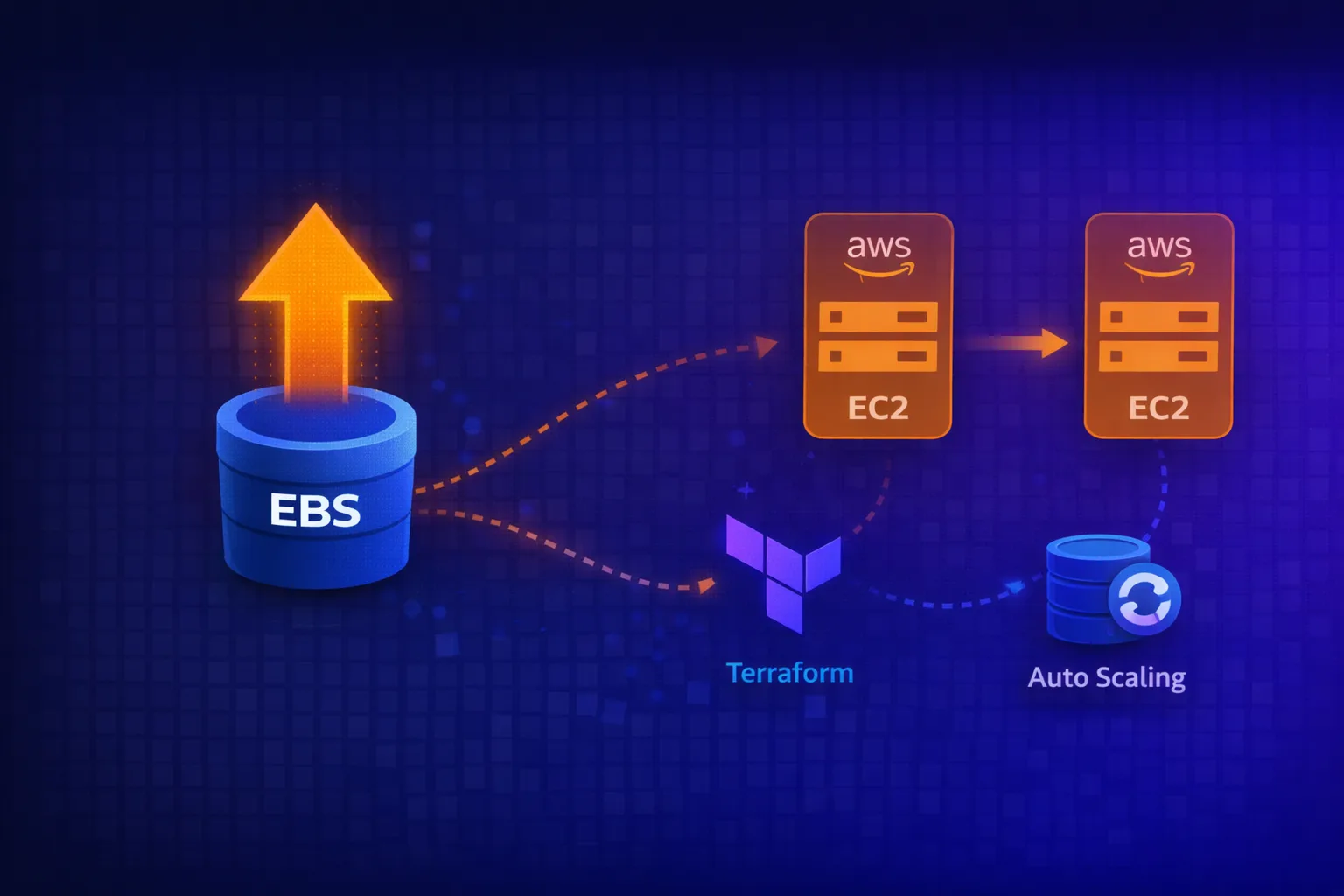
How to Increase EBS Disk Size on EC2 (Without Downtime)
Running out of disk space on an EC2 instance is one of those problems that always seems to happen at the worst possible time. The good news? AWS lets you resize EBS volumes online – no reboot required. Here’s how to do it properly, both the IaC way and the manual escape hatch.

The Scenario
You’ve got an EC2 instance – let’s say it’s running Consul, Vault, or any stateful workload – and disk utilisation is creeping towards 100%. The data lives on a separate EBS volume mounted at /var/lib/consul (or similar), and you need to expand it from 10GB to 20GB without taking the service offline.
Method 1: The Right Way (Infrastructure as Code)
If you’re running immutable infrastructure with Terraform and Auto Scaling Groups, the fix is straightforward.
1. Update Your Terraform
Add or modify the ebs_block_device in your launch template or instance configuration:
resource "aws_launch_template" "consul" {
  name_prefix   = "consul-"
  image_id      = var.ami_id
  instance_type = var.instance_type

  block_device_mappings {
    device_name = "/dev/xvdf"

    ebs {
      volume_size           = 20  # Increased from 10
      volume_type           = "gp3"
      delete_on_termination = true
      encrypted             = true
    }
  }

  # ... rest of config
}
2. Apply and Instance Refresh
terraform plan
terraform apply
Then trigger an instance refresh on the ASG:
- Navigate to EC2 → Auto Scaling Groups → Your ASG
- Click Instance refresh → Start instance refresh
- Configure:
- Minimum healthy percentage: 90% (or appropriate for your cluster)
- Instance warmup: 300 seconds (adjust based on your health checks)
- Update preferences: Select Launch before terminating
- Deselect “Enable skip matching” to force replacement
This rolls new instances with the larger disk into the ASG while maintaining availability.
Method 2: The Manual Way (Console + CLI)
Sometimes you need to fix it now and codify it later. Here’s the manual approach.
1. Identify the Volume
SSH or SSM into the instance and find your disk:
lsblkOutput:
NAME         MAJ:MIN RM   SIZE RO TYPE MOUNTPOINTS
nvme0n1      259:0    0    10G  0 disk
├─nvme0n1p1  259:1    0   9.9G  0 part /
├─nvme0n1p14 259:2    0     4M  0 part
└─nvme0n1p15 259:3    0   106M  0 part /boot/efi
nvme1n1      259:4    0    10G  0 disk /var/lib/consul
Here, nvme1n1 is the data volume mounted at /var/lib/consul – that’s the one to resize.
Check current usage:
df -hFilesystem Size Used Avail Use% Mounted on
/dev/root 9.6G 4.5G 5.1G 48% /
/dev/nvme1n1 9.8G 4.4G 4.9G 48% /var/lib/consul2. Resize the EBS Volume in AWS Console
- Go to EC2 → Instances → [Your Instance]
- Click the Storage tab
- Under Block devices, find the device (e.g.,
/dev/xvdf– this maps tonvme1n1on NVMe instances) - Click the Volume ID to open it
- Actions → Modify volume
- Change size from 10 to 20 (or whatever you need)
- Click Modify and confirm
The volume enters optimizing state – this is normal and doesn’t affect the running instance.
3. Extend the Filesystem
Back on the instance, the block device now shows the new size but the filesystem doesn’t know yet:
lsblknvme1n1 259:4 0 20G 0 disk /var/lib/consulBut df -h still shows 10G. Extend the filesystem:
For ext4 (most common):
sudo resize2fs /dev/nvme1n1For XFS:
sudo xfs_growfs /var/lib/consulOutput:
resize2fs 1.46.5 (30-Dec-2021)
Filesystem at /dev/nvme1n1 is mounted on /var/lib/consul; on-line resizing required
old_desc_blocks = 2, new_desc_blocks = 3
The filesystem on /dev/nvme1n1 is now 5242880 (4k) blocks long.
Verify:
df -h/dev/nvme1n1 20G 4.4G 15G 24% /var/lib/consulDone. No reboot, no downtime.
Gotchas
NVMe device naming: On Nitro-based instances, /dev/xvdf in the console maps to /dev/nvme1n1 (or similar) on the instance. Use lsblk to find the actual device name.
Partition vs raw disk: If your volume has partitions (like the root volume), you need to grow the partition first with growpart, then the filesystem. For data volumes mounted as raw disks (no partition table), resize2fs works directly.
gp2 vs gp3: If you’re still on gp2, consider switching to gp3 while you’re modifying – better baseline IOPS and cheaper.
Volume modification cooldown: You can only modify a volume once every 6 hours. Plan accordingly.
Terraform drift: If you resize manually, remember to update your Terraform to match – otherwise the next terraform apply might try to shrink it back or recreate the instance.
Monitoring to Prevent This
Set up CloudWatch alarms before you hit 90%:
resource "aws_cloudwatch_metric_alarm" "disk_utilisation" {
  alarm_name          = "consul-disk-utilisation-high"
  comparison_operator = "GreaterThanThreshold"
  evaluation_periods  = 2
  metric_name         = "disk_used_percent"
  namespace           = "CWAgent"
  period              = 300
  statistic           = "Average"
  threshold           = 80
  alarm_description   = "Disk utilisation above 80%"

  dimensions = {
    path       = "/var/lib/consul"
    device     = "nvme1n1"
    fstype     = "ext4"
    AutoScalingGroupName = aws_autoscaling_group.consul.name
  }

  alarm_actions = [aws_sns_topic.alerts.arn]
}
Requires the CloudWatch agent with disk metrics enabled.
Summary
| Approach | When to Use | Downtime |
|---|---|---|
| Terraform + Instance Refresh | Immutable infrastructure, can wait for rollout | Zero (rolling) |
| Manual Console + CLI | Emergency fix, single instance, dev/test | Zero (online resize) |
The manual method is faster for one-off fixes, but always back-port changes to your IaC. Future you will thank present you.
Have questions or war stories about disk emergencies? Find me on LinkedIn or drop a comment below.